More than a form builder
At a Glance
My contribution: Product design for Conditionals and Aggregation, covering the logic model, source selection, compatibility rules, interface states, and interactive prototypes in collaboration with the viaPeople dev team.
Challenge: Add visibility rules and anonymous aggregation to a drag-and-drop builder without turning routine setup into programming.
Outcome: Two guided flows that keep conditions readable, trace dependencies from either direction, and prevent incompatible sources and operations from being combined.
viaPeople’s Form Builder is a drag-and-drop tool used by Client Success to assemble forms for clients, much like building a page in a no-code editor. Two additions expanded what those forms could do: Conditionals control what each reviewer sees, while Aggregation turns multiple responses into a shared, anonymous result. Both had to fit the builder without making routine setup feel like programming.
With Conditionals, Client Success selects a source, operator, and value. More criteria can be joined with “and”. “Or” was excluded because its expected use did not justify the engineering effort. With Aggregation, the first source establishes a response family. Every source added after that must be compatible. Closed responses support calculations such as “Average”; open responses support operations such as “Combine”. Keeping the families separate prevents invalid combinations.
Conditionals: Rules That Stay Readable
A condition decides whether a component is shown to a reviewer. Client Success sets the rule in the builder, and the form checks it separately for each reviewer.
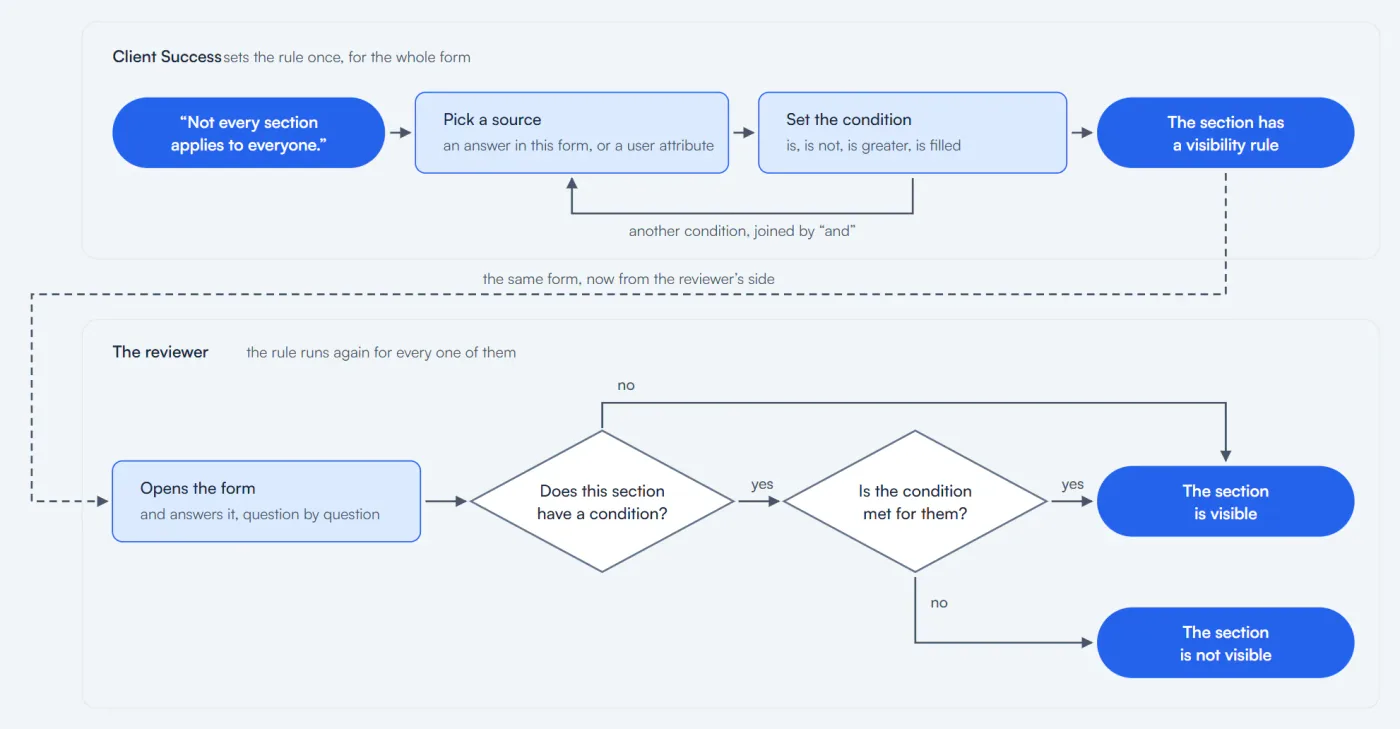
Conditionals in practice: Client Success sets the rule once, and the form checks it for every reviewer.
The Relationship Reads in Both Directions
The rule lives on the component whose visibility it controls. The source also shows which components depend on it, letting Client Success trace the relationship from either end. A filled blue badge marks the component where the rule is configured. An outlined badge marks a component used as its source.
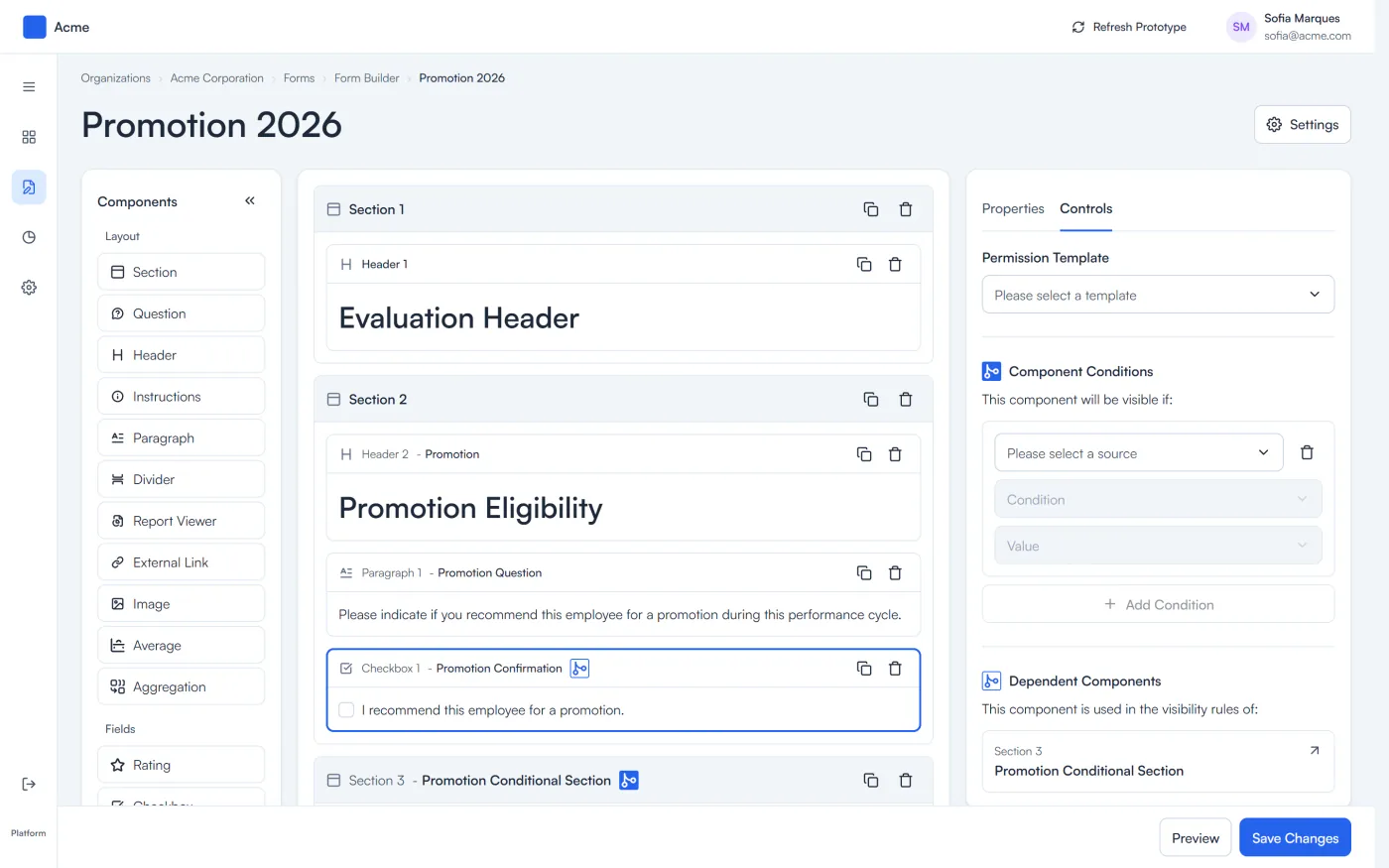
Select the source to see its dependent components. Select a dependent component to return to the rule.
Four Paths Through the Source Picker
Early in the project, a source could come from a form in a previous cycle step. Selecting one meant navigating three levels: form, section, and component. We explored four models for that journey: progressive drill-down, an expandable tree, drill-down with search at every level, and cascading menus.
That hierarchy disappeared when the scope was narrowed to the current cycle form. The shipped picker became a flat, searchable list organized into In This Cycle Form and User Attributes. The smaller scope no longer needed a three-level interaction.
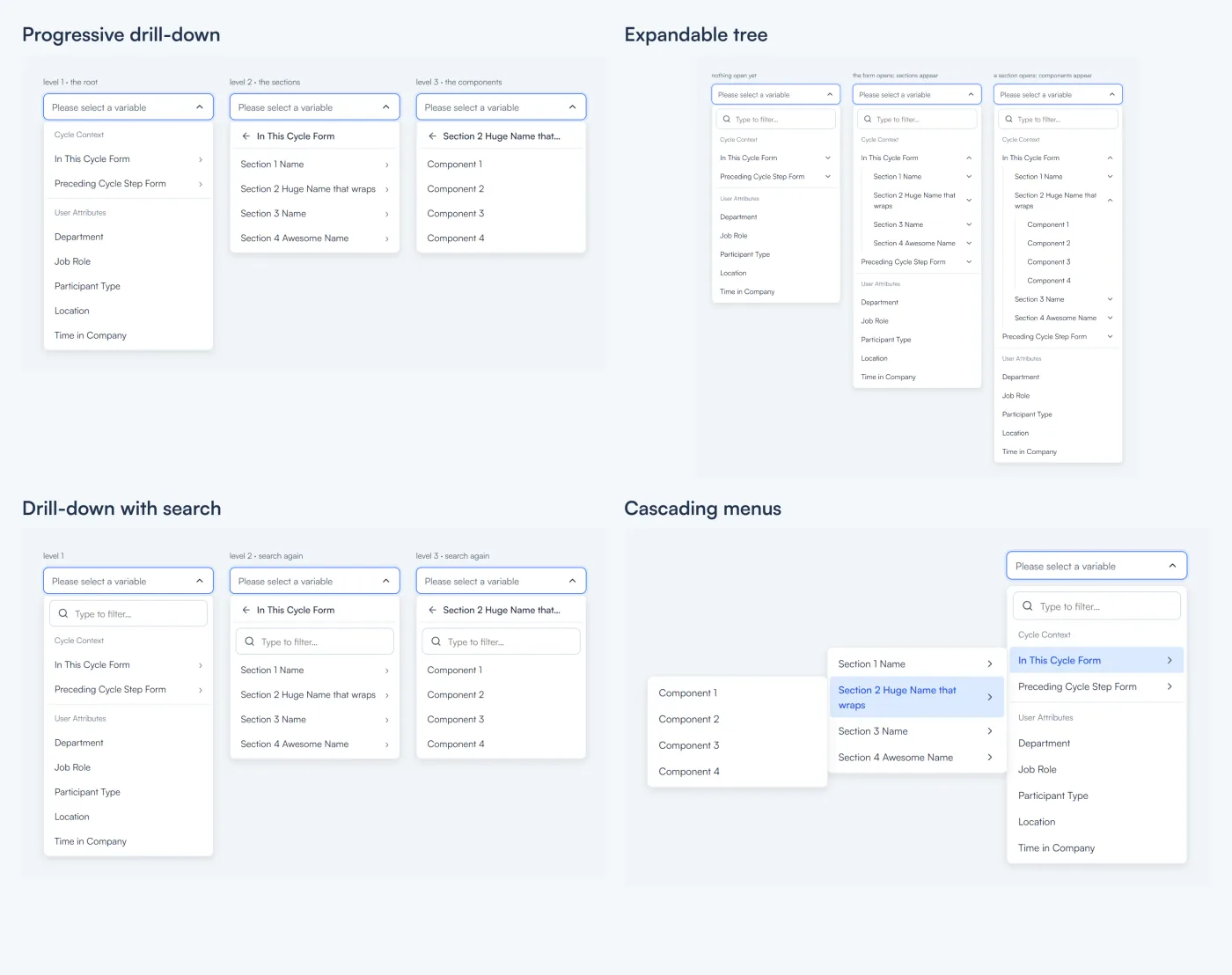
Four navigation models explored for the original three-level hierarchy.
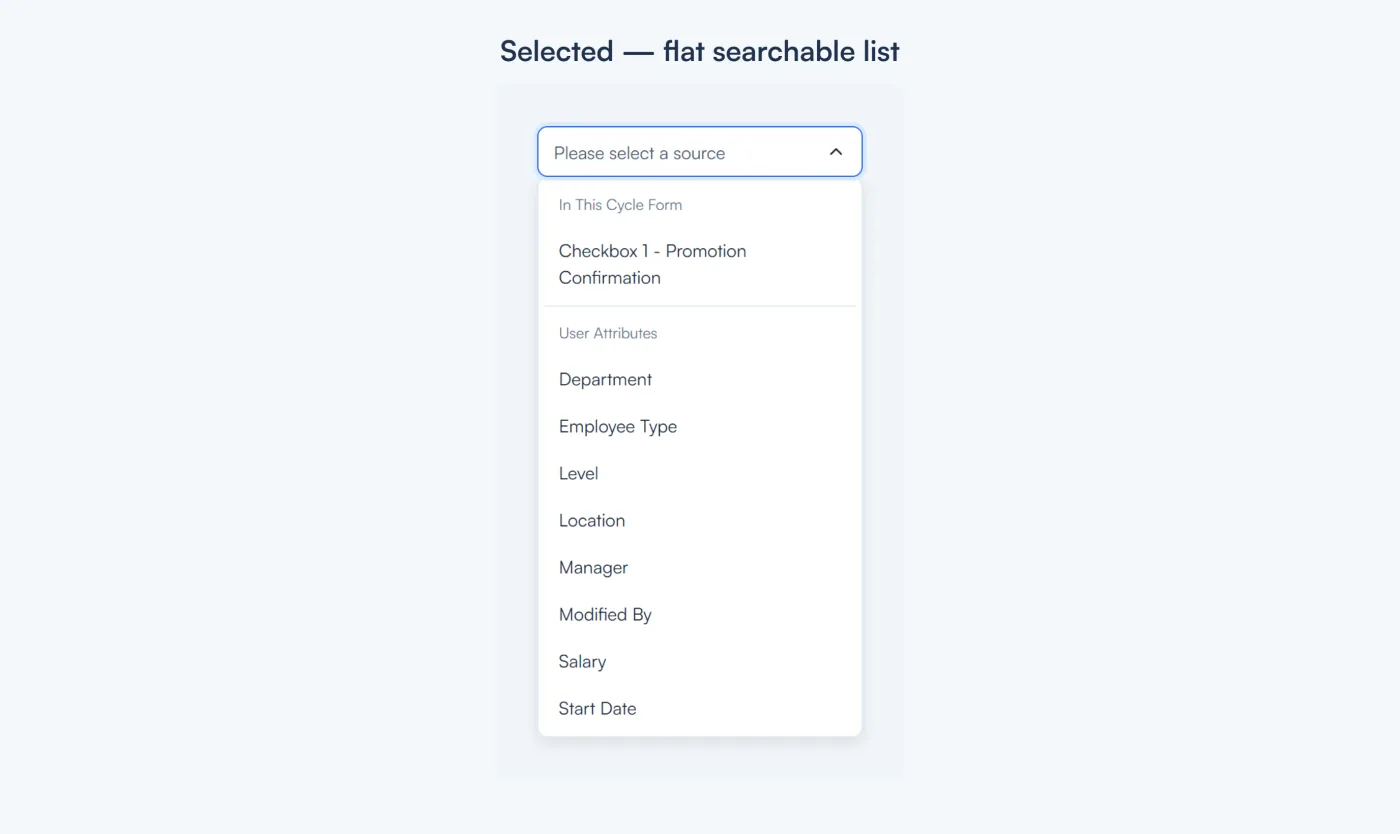
When previous-cycle forms left the scope, the three-level navigation was no longer necessary.
Building the Rule
The rule stays in one place on the controlled component: source, operator, value, and any extra criteria joined by “and”. Client Success selects from explicit operators instead of writing expressions.
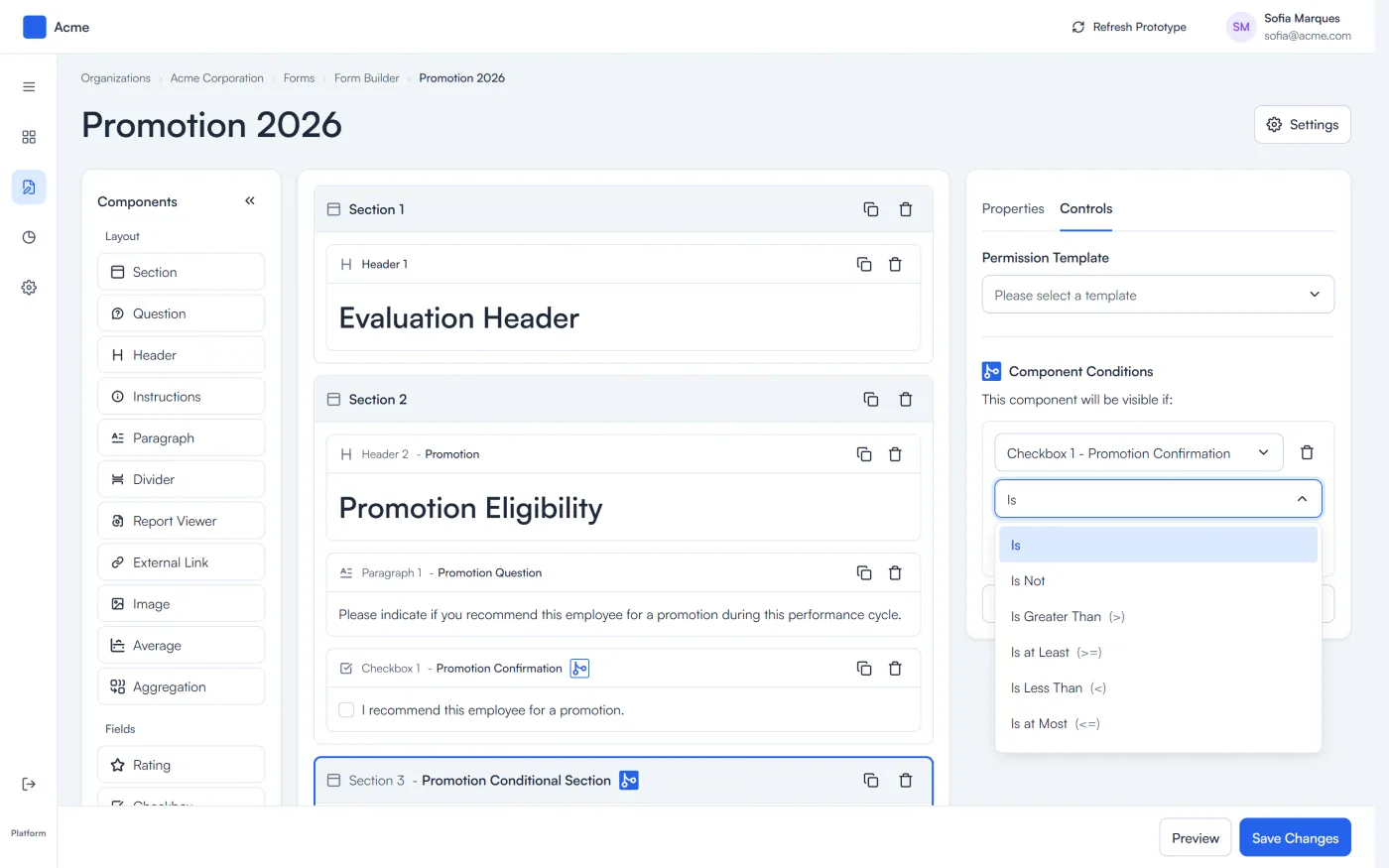
The open menu shows the available Conditionals operators directly in the builder.
Aggregation: What the Answers Reveal Together
Aggregation combines multiple responses into an anonymous output. The first source sets the response family, filters which sources can be added, and limits the operations to valid options.
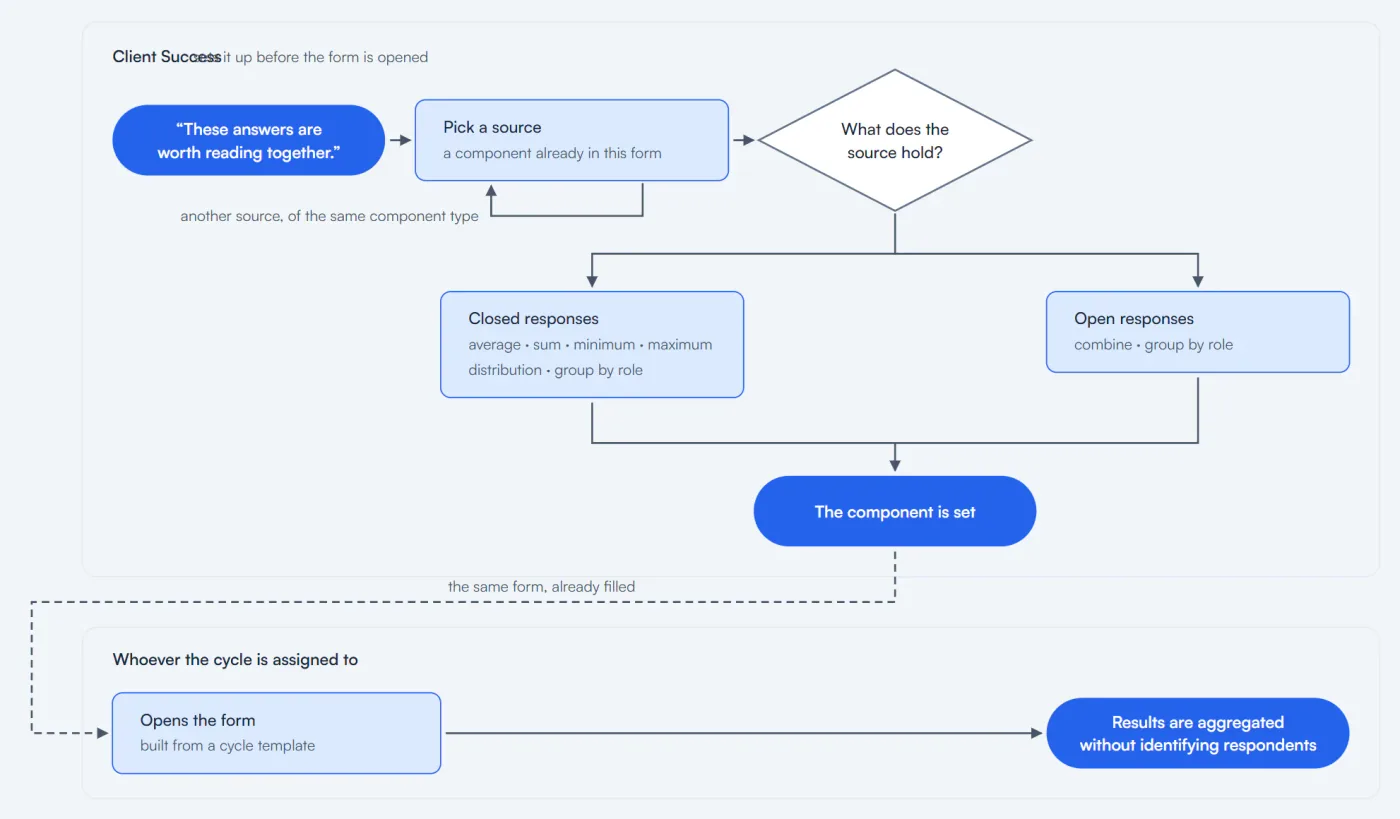
Aggregation uses the first source to filter compatible sources and operations.
The Response Family Comes First
Closed-response fields, including ratings, support “Average”, “Sum”, “Minimum”, “Maximum”, “Distribution”, and “Group by Role”. Open-response fields, including text areas, support “Combine” and “Group by Role”. Additional sources must use the same component type as the first.
The result remains anonymous. Individual responses are hidden; only the combined output is available.
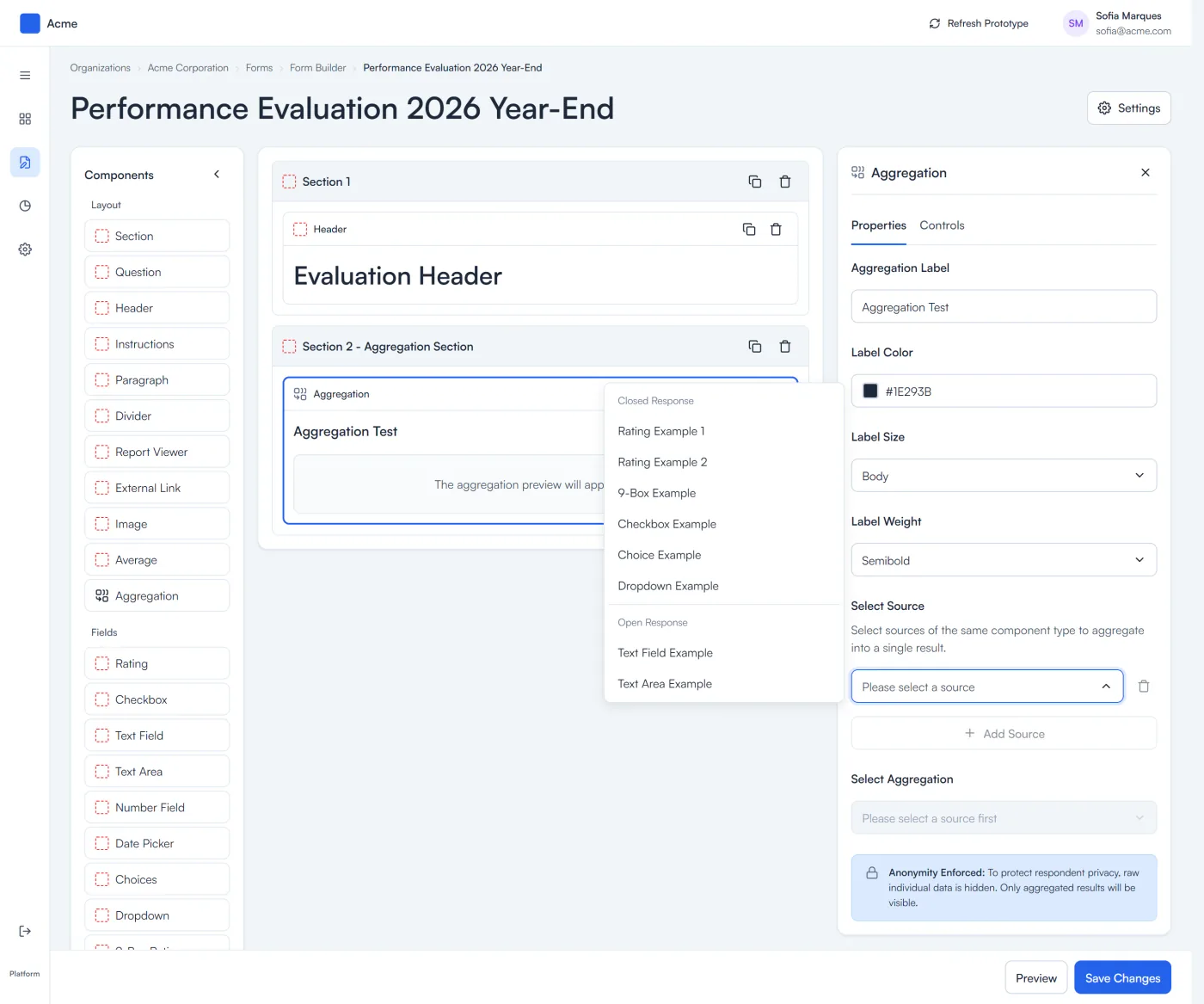
The source menu shows “Closed Response” and “Open Response” before an operation is selected.
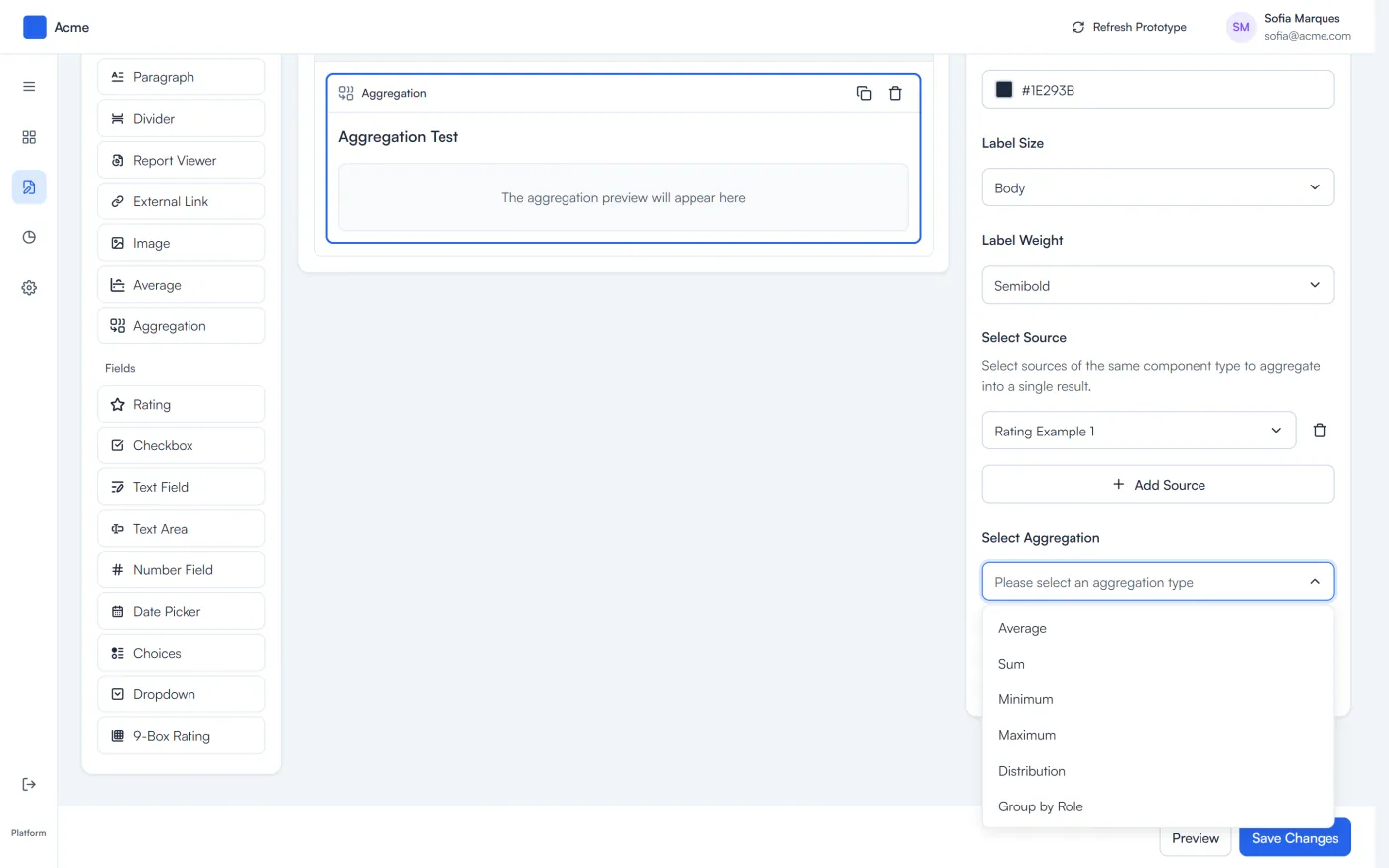
Closed responses keep all six compatible operations available.
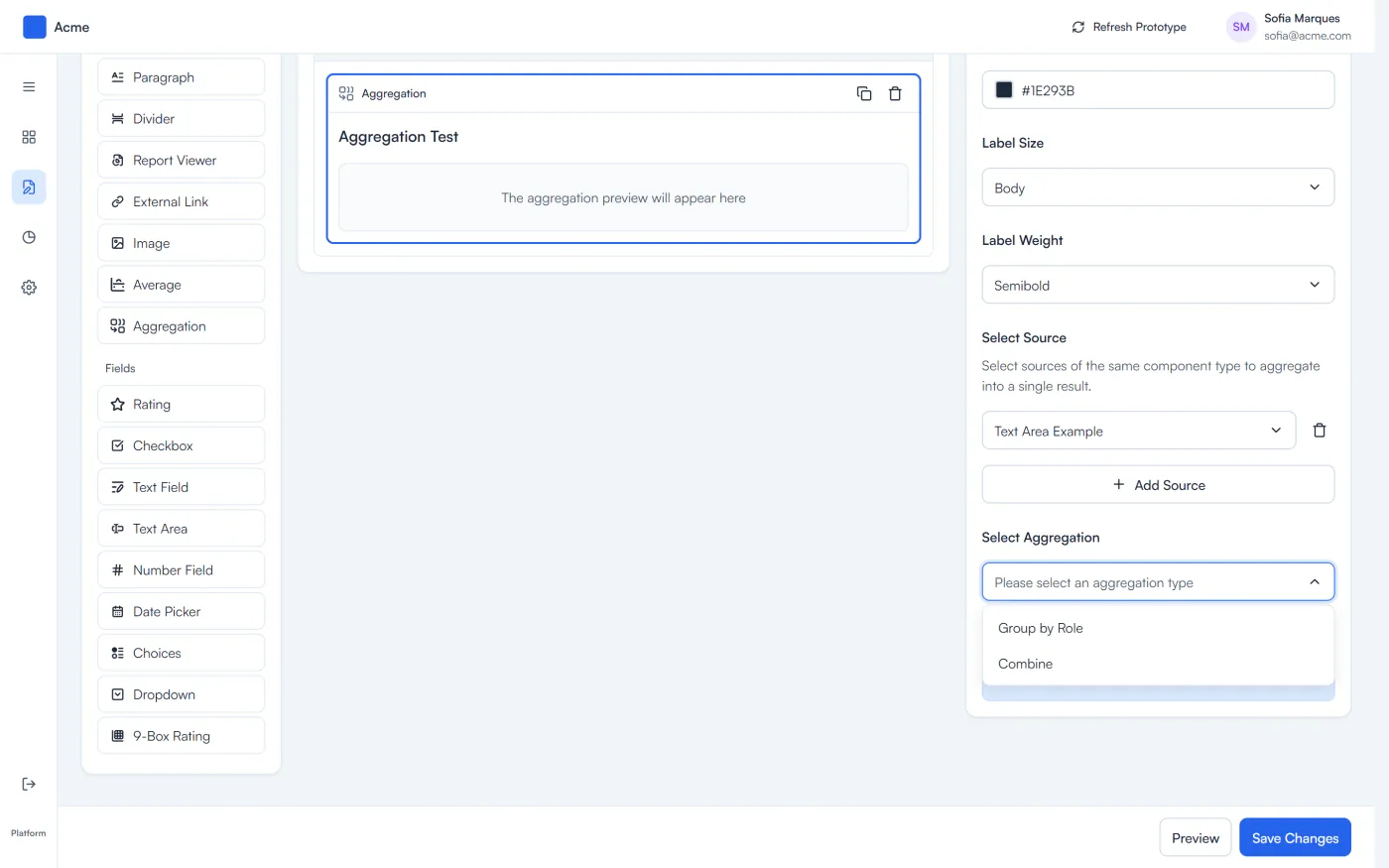
Open responses narrow the menu to “Combine” and “Group by Role”.
Explore Both Prototypes
Use the prototypes separately. In Conditionals, select the filled and outlined blue badges to trace a rule from both sides. In Aggregation, switch between a “Rating” and a “Text Area” source to see how the available operations change.
Conditionals prototype
Aggregation prototype
viaPeople, its product, and the interfaces shown in this case belong to viaPeople. This portfolio presentation is a reconstruction based on the original designs, using fictional data to protect confidential information.